8. Admin Panel Setup
Ensure that your server meets the requirements outlined in the documentation’s Server Requirement section. Upon downloading the code, upload the admin zip file to your server and extract it. The admin panel can be installed on either a domain or a subdomain.
8.1 Create Database
8.1.1 : Create a new database from your server’s MYSQL database.
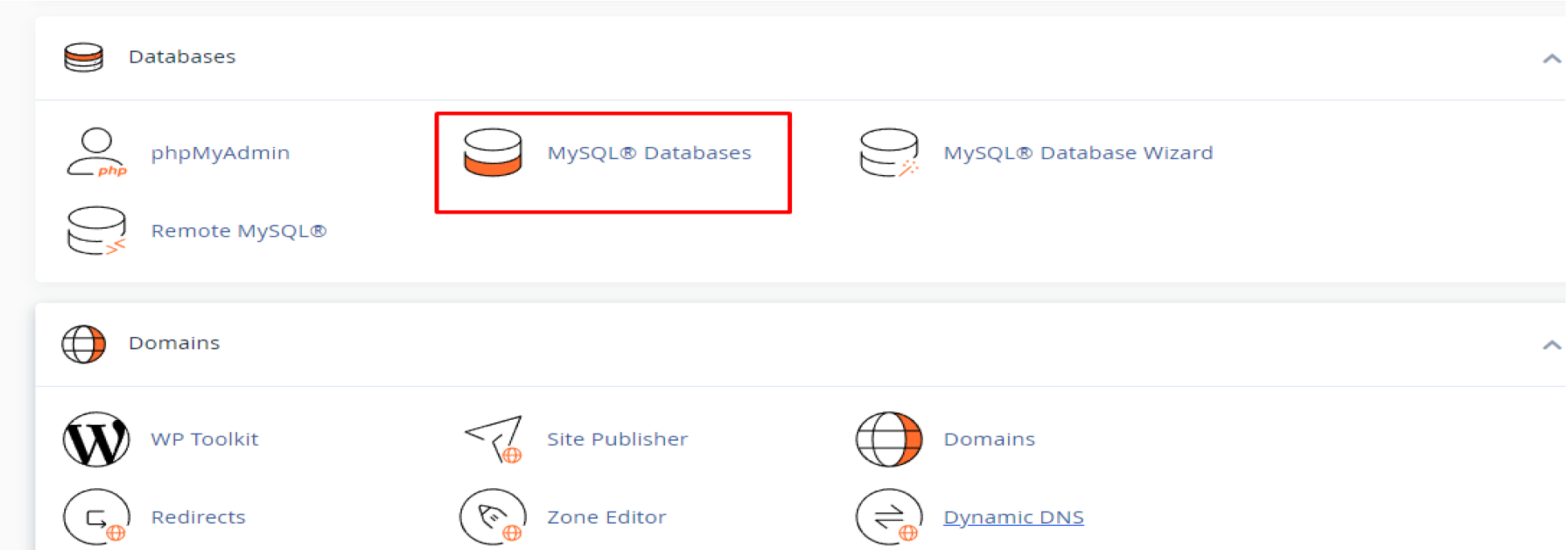
8.1.2 : Create New Database

8.1.3 : Create a new database user

8.1.4 : Connect the database to the newly created database user.

8.1.5 : Grant all privileges to your user by selecting “All PRIVILEGES” and then clicking on “Make Changes”

8.2 Configure Admin Panel
8.2.1 : Once you’ve downloaded the code, upload the admin zip file to your server and extract it. The admin panel can be installed on either a domain or subdomain.
9.3. Run the following command one by one.
composer installphp artisan key: generatephp php artisan migrate: fresh --seenpm install8.2.3. Next, you’ll need to configure the following settings in your .env file: Database host, Database name, Database username, Database password, and your Firebase project credentials.
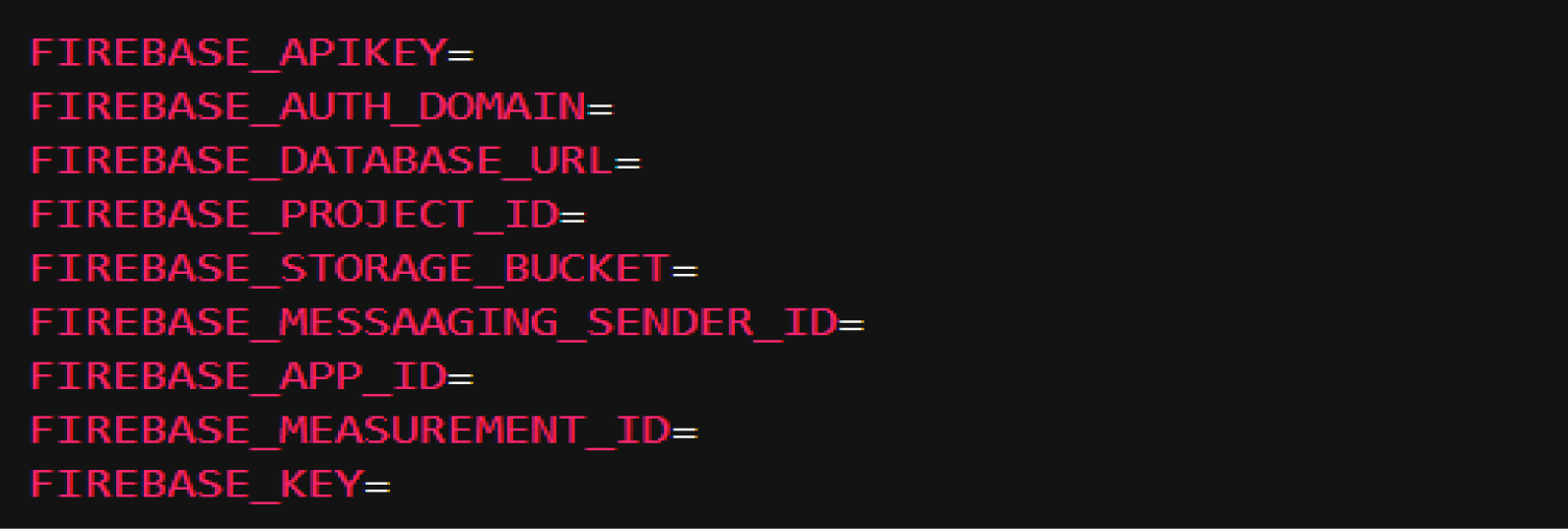
To obtain Firebase credentials, navigate to Project Settings > General >, then select your web app.
Web apps

Important Notes:
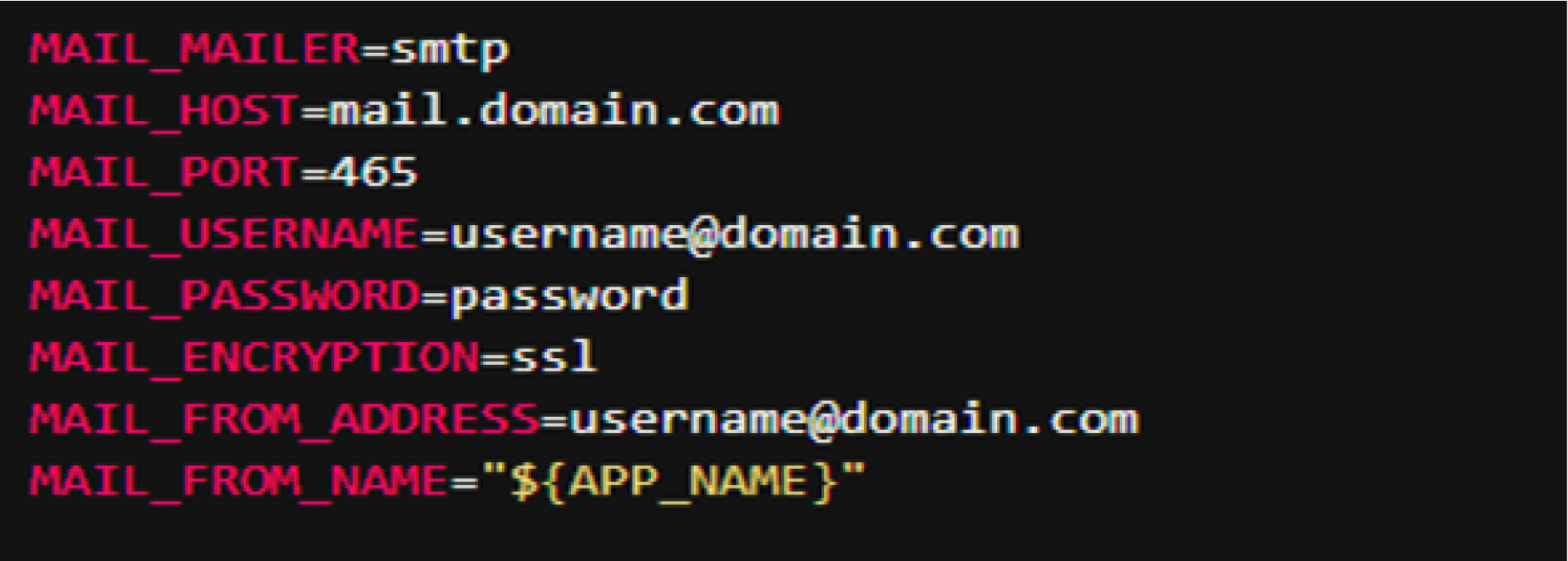
Please ensure to update your mail SMTP credentials in the .env file of your admin panel. Failure to do so will result in the mail functionality not working. Refer to the following snapshot for guidance.
8.2.4. Important: Run the “npm install” command (if not already run) from the root directory of your admin panel terminal to install Firebase dependency modules required for scheduler functions.
Setup Node Js Path
Please update the NODE_PATH variable value in the .env file of your admin panel directory.

Please update the APP_TIMEZONE variable value based on your timezone in the .env file of your admin panel directory.

To get the Node path from the terminal, you typically want to determine the location of Node.js or a specific file related to Node. Here are common ways to do this from the terminal:
To find out where Node.js is installed on your system, you can use the which command (on Linux/macOS):
which node
This will return the full path to the Node.js binary. For example:
/usr/local/bin/node
See this example: In our case, the Node.js path is something like the one below.

Copy this path and update it in your NODE_PATH variable.
8.2.5. Please Note: To work firebase push notification feature functions correctly, please upload your Firebase credentials file in the Admin Panel by navigating to Settings > Global Settings > Notifications Settings.