7. Google APIs & Geolocation Setup Guide
7.1. Enable Google Places API
- 7.1.1. Go to https://console.cloud.google.com/
- 7.1.2. Select your project or create a new one.
- 7.1.3. In the Navigation
Menu → APIs & Services → Library. - 7.1.4. Search for Places API and click Enable.
- 7.1.5. Go to
Credentials → Click Create API Key. - 7.1.6. Restrict the key to the Places API for security.
7.2. Enable Google Geocoding API
- 7.2.1. In the same project, go to
APIs & Services → Library. - 7.2.2. Search for
Geocoding API → Click Enable. - 7.2.3. Use the same or a separate API key (you can reuse the key from Places API).
7.3. Enable Maps SDK for Android
- 7.3.1. Go to Google Cloud Console
- 7.3.2. Select your project.
- 7.3.3. Navigate to
APIs & Services → Library. - 7.3.4. Search for Maps SDK for
Android → Click Enable. - 7.3.5. Go to Credentials → Create or use an existing API key.
- 7.3.6. Restrict the key for Android with your app’s SHA-1 fingerprint and package name.
7.4. Enable Maps SDK for iOS
- 7.4.1.In the same Google Cloud project, enable Maps SDK for iOS in the API Library.
- 7.4.2. Use the same API key or create a new one.
- 7.4.3. Restrict usage to iOS bundle identifier.
7.5. Enable Maps Embed API
- 7.5.1. Purpose: Embed static or interactive Google Maps in websites (limited in mobile apps).
7.6. Enable Geolocation API
- 7.6.1. Enable Geolocation API in the API Library.
- 7.6.2. Use an HTTP POST request to retrieve location (server-side usage recommended).
To change the Google Maps API key in a Flutter app for both Android and iOS, you need to update the respective configuration files in each platform. Here are the steps:
7.7. For Android:
- 7.7.1. Navigate to your Flutter project’s
android/app/src/main/AndroidManifest.xmlfile. - 7.7.2. Inside the
element, locate the tag with the name com.google.android.geo.API_KEY. - 7.7.3. Replace the android:value attribute with your new Google Maps
API key.
<meta-data android:name="com.google.android.geo.API_KEY"...> android:value="YOUR_API_KEY_HERE"/...>
7.8. For iOS::
- 7.8.1. Open your Flutter project in a text editor or IDE.
- 7.8.2. Navigate to the ios/Runner directory within your Flutter project.
- 7.8.3. Locate the AppDelegate.swift file.
- 7.8.4. In the didFinishLaunchingWithOptions method, set the Google Maps API key.
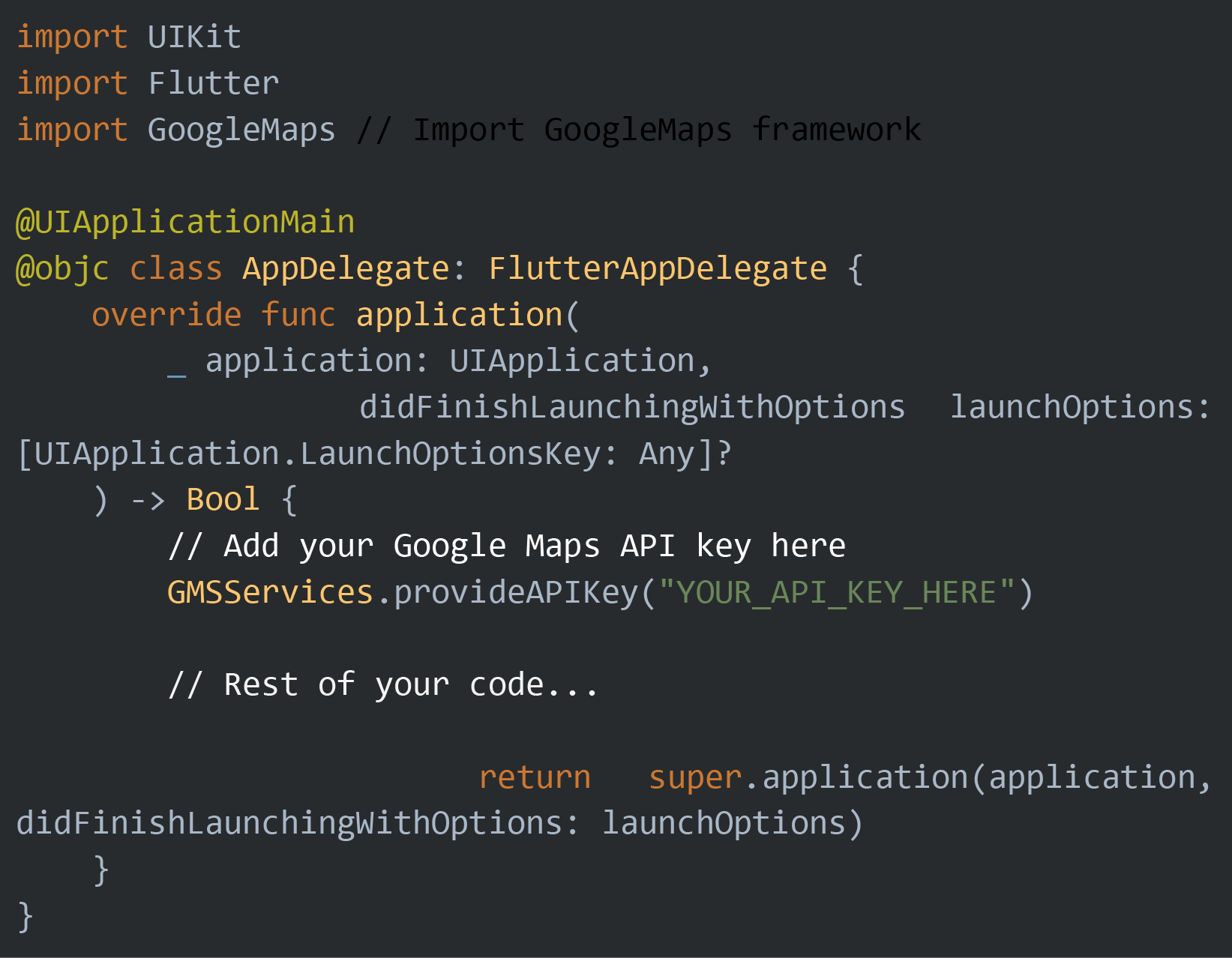
Replace “YOUR_API_KEY_HERE” with your actual Google Maps API key.
After updating the API key in the AppDelegate.swift file, rebuild your Flutter app for iOS to apply the changes.
By following these steps, your Flutter app will use the new Google Maps API key specifically for iOS. Make sure you’ve also updated the API key in the Android configuration as described earlier if you want to apply changes to both platforms.