5. Dispatcher Panel Setup
The Dispatcher Panel is designed for operators responsible for managing bookings on behalf of customers. Dispatchers can create and manage ride, rental, and parcel bookings but do not have access to system-level settings such as pricing rules, commissions, or app configurations unless explicitly permitted by the admin.
The Dispatcher Panel can be installed on:
- Main domain (example: example.com/dispatcher)
- Subdomain (example: dispatcher.example.com)
5.1 Connect to FTP and Setup
Follow these instructions to connect to your server using FTP and complete the application setup:
5.1.1: Connect to the server using FTP: Use an FTP client like FileZilla to connect to your server. Enter the server’s IP address, username, and password. Use port 21 for FTP or port 22 for SFTP.
5.1.2: Transfer the ZIP file: Upload your admin panel’s ZIP file to the server’s local path (e.g., /var/www/html).
5.1.3: Unzip the file: Navigate to the file’s location on the server and run the following command to extract the ZIP file: “sudo unzip your-application.zip” or you can do it from cpanel directly.
5.1.4: Update the .env file with your configuration: Modify the database and application settings which are mentioned in the .env file. Below is an example configuration:
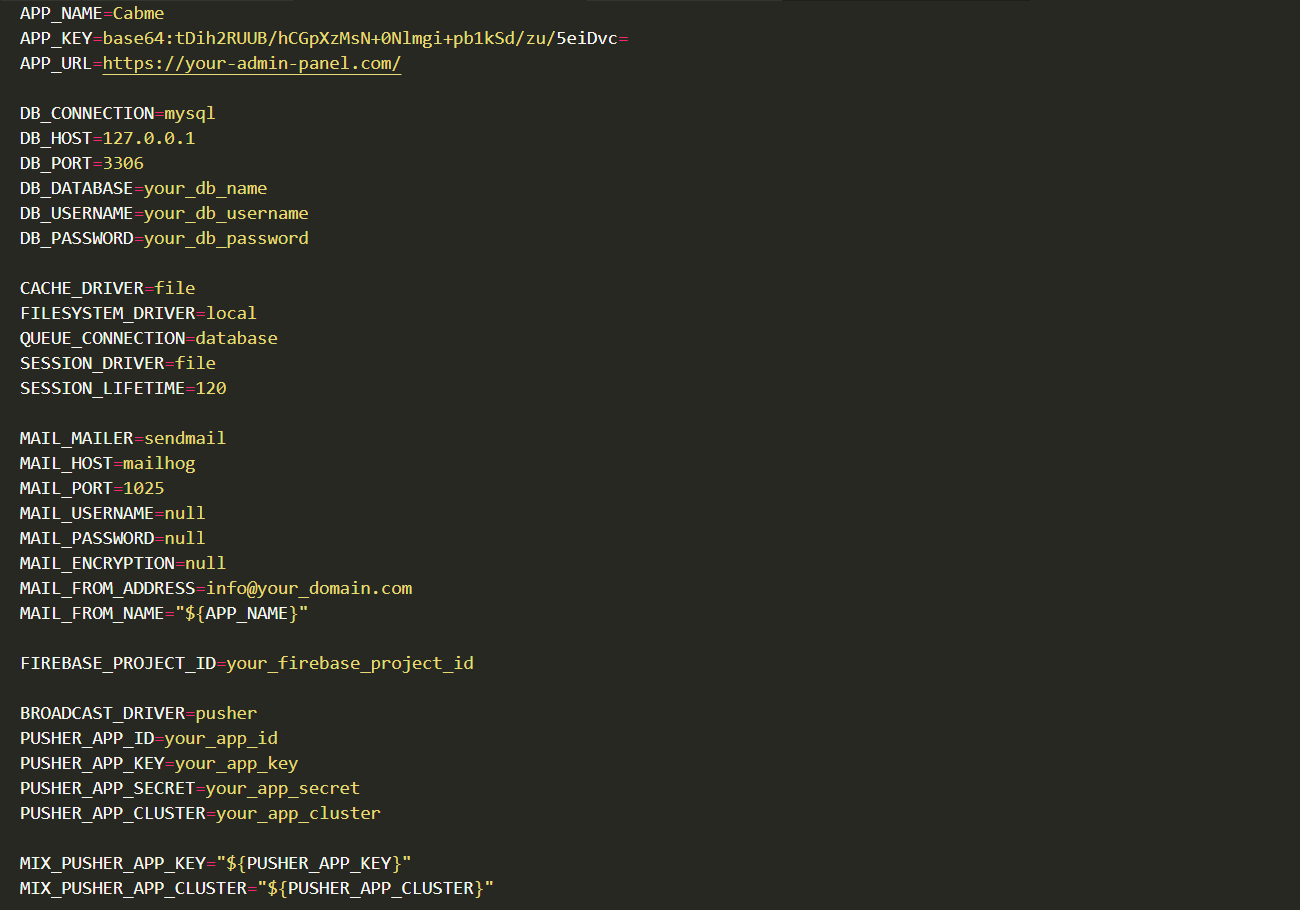
5.1.5: Run the following command one by one.
php artisan key:generate
If you encounter any errors while creating a key, please run the following command to update all system packages.
composer update
5.2 Dispatcher Users, Access Control & Permissions
The Dispatcher Panel supports multiple dispatcher user types with role-based access and subscription validation. Dispatcher users are created and managed through the Admin Panel or automatically during owner registration.
5.2.1 Dispatcher User Types
The system supports the following dispatcher user types:
1. Individual Dispatcher (Admin-Created)
- Created manually by the Admin from the Admin Panel.
- Can log in directly to the Dispatcher Panel.
- Granted permission to:
- Create and manage all types of bookings.
- Assign any available driver (manual or automatic).
2. Owner Dispatcher (Auto-Created)
- Automatically created when:
- An Owner registers via the mobile app, or
- An Owner is created by the Admin Panel.
- The owner account is also registered as a dispatcher user.
- Login access to the Dispatcher Panel depends on the owner’s subscription plan.
5.2.2 Subscription-Based Dispatcher Access (Owner Only)
Dispatcher Panel access for owner users is controlled through the subscription plan:
- Each subscription plan includes a Dispatcher Panel Access option.
- Owners can log in to the Dispatcher Panel only if:
- They have an active subscription, and
- Dispatcher Panel access is enabled in their plan.
- If the subscription is expired or dispatcher access is disabled, login is restricted. This ensures controlled access and feature availability based on the owner’s plan.
5.2.3 Driver Assignment Permissions
Driver assignment behavior varies based on the dispatcher user type:
- Owner Dispatcher
- Can assign drivers only from their own registered drivers.
- Cannot view or assign drivers belonging to other owners.
- Individual Dispatcher (Admin-Created)
- Can assign any available driver across the platform (if permitted by admin).
- Suitable for centralized dispatch operations and call-center use cases.
5.2.4 Driver Assignment Modes
Dispatchers can assign drivers using the following methods:
- Automatic Assignment:
The system automatically assigns the nearest available driver based on location and availability.
- Manual Assignment:
Dispatchers can manually select a driver from the available driver list, subject to role-based restrictions.
5.3 Dispatcher Panel Menus Overview
5.3.1: Dashboard
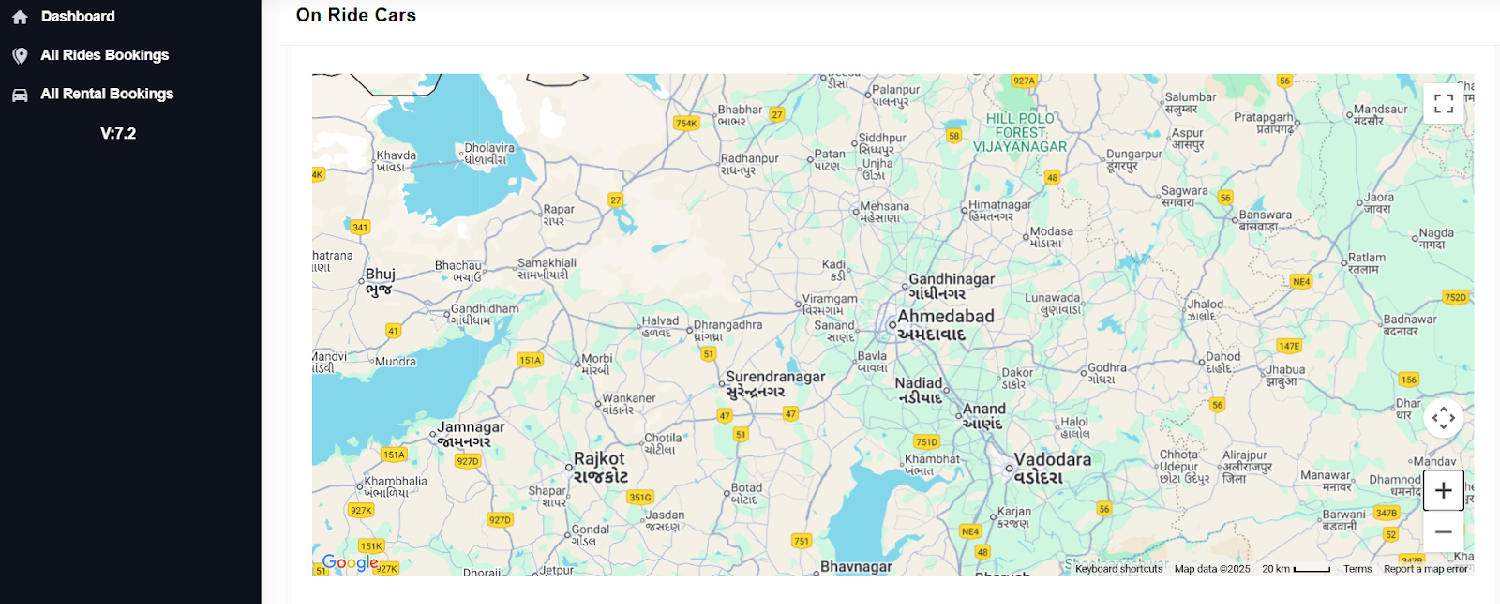
The Live Map Tracking page allows dispatchers to monitor drivers and vehicles in real time on an interactive map. This feature helps manage ongoing rides, track driver locations, and ensure accountability and safety. Admins can quickly identify available drivers, intervene during issues, and provide live support to customers or drivers when necessary. The page improves operational efficiency, enhances service reliability, and gives a clear visual overview of fleet activity across all service areas.
5.3.2: Ride Bookings
The Ride Bookings page allows dispatcher users to view all ride bookings, including completed, canceled, and ongoing trips. Each booking displays essential details such as trip information, fare breakdown, and the assigned driver and customer. In addition, dispatchers can create new ride bookings on behalf of customers, helping users who face issues with the mobile app or need assistance. This page ensures smooth coordination between drivers, customers, and dispatchers, enabling efficient ride management and improved customer support.
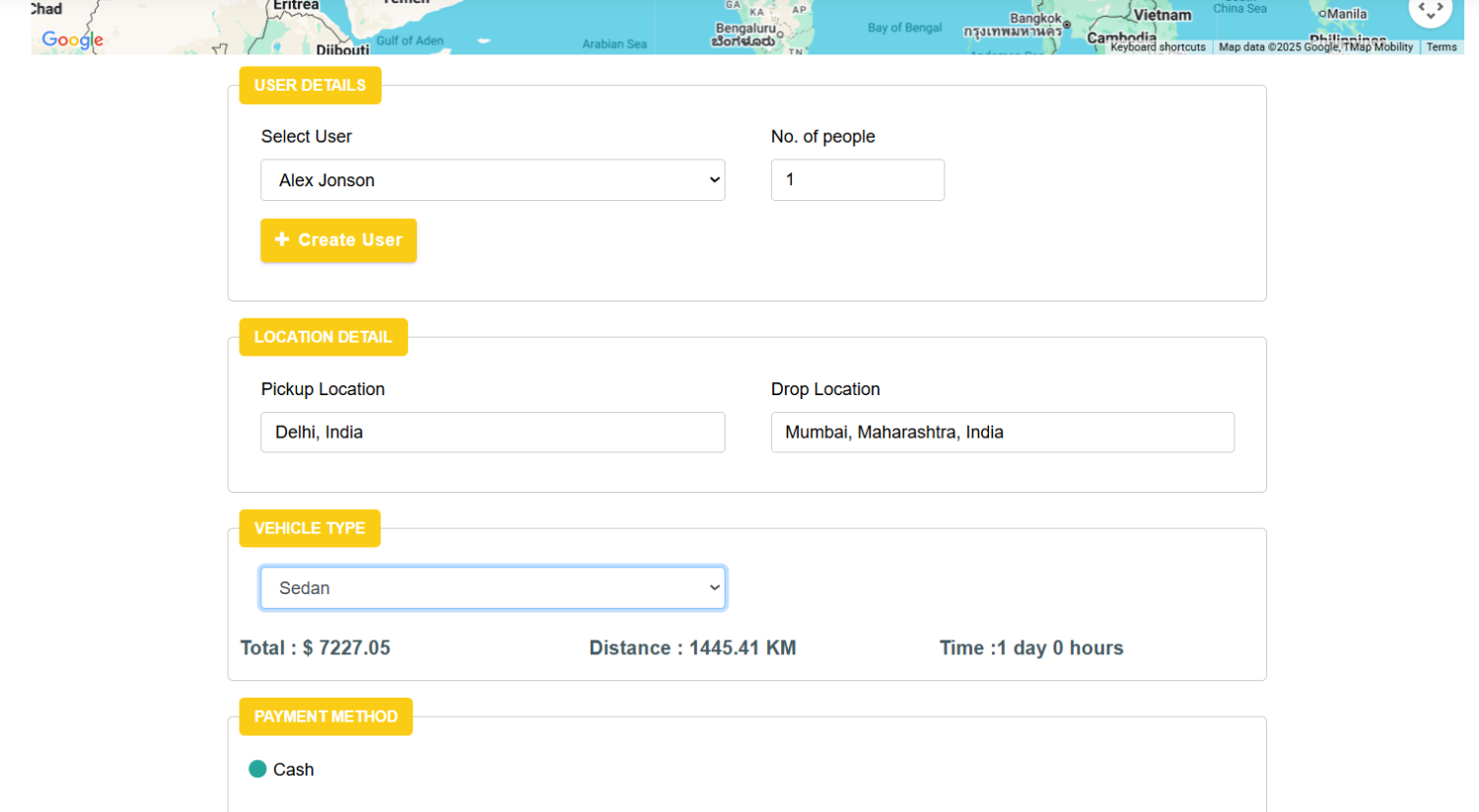
Steps to Create a Normal Ride Booking
- Click “Book Now”.
- Select User (if user not exist then you can create new user by clicking on Create User button)
- Add No.of people, pickup location and drop-off location.
- Select Vehicle Type (Sedan, Mini, SUV, etc.).
- Review Fare Estimate and trip summary.
- Select Payment Method (Currently only cash payment mode available).
- Driver Assignment (Automatic or Manual).
- Automatic Assignment: The system automatically assigns the nearest available driver based on location and availability.
- Manual Assignment: Dispatchers can manually select a preferred available driver from the driver list when specific assignment is required.
- Click on the “Book” button to create customer booking.
- Monitor ride progress in real time from the Dashboard (Live Map).
5.3.3: Rental Bookings
The Rental Bookings page allows dispatcher users to view all rental ride bookings, including completed, canceled, and ongoing trips. Each booking provides essential details such as trip information, fare breakdown, and the assigned driver and customer. Dispatchers can also create new rental bookings on behalf of customers, assisting users who may face difficulties with the mobile app or require direct support. This page ensures efficient management of rental services, smooth coordination between drivers and customers, and enhanced customer satisfaction.
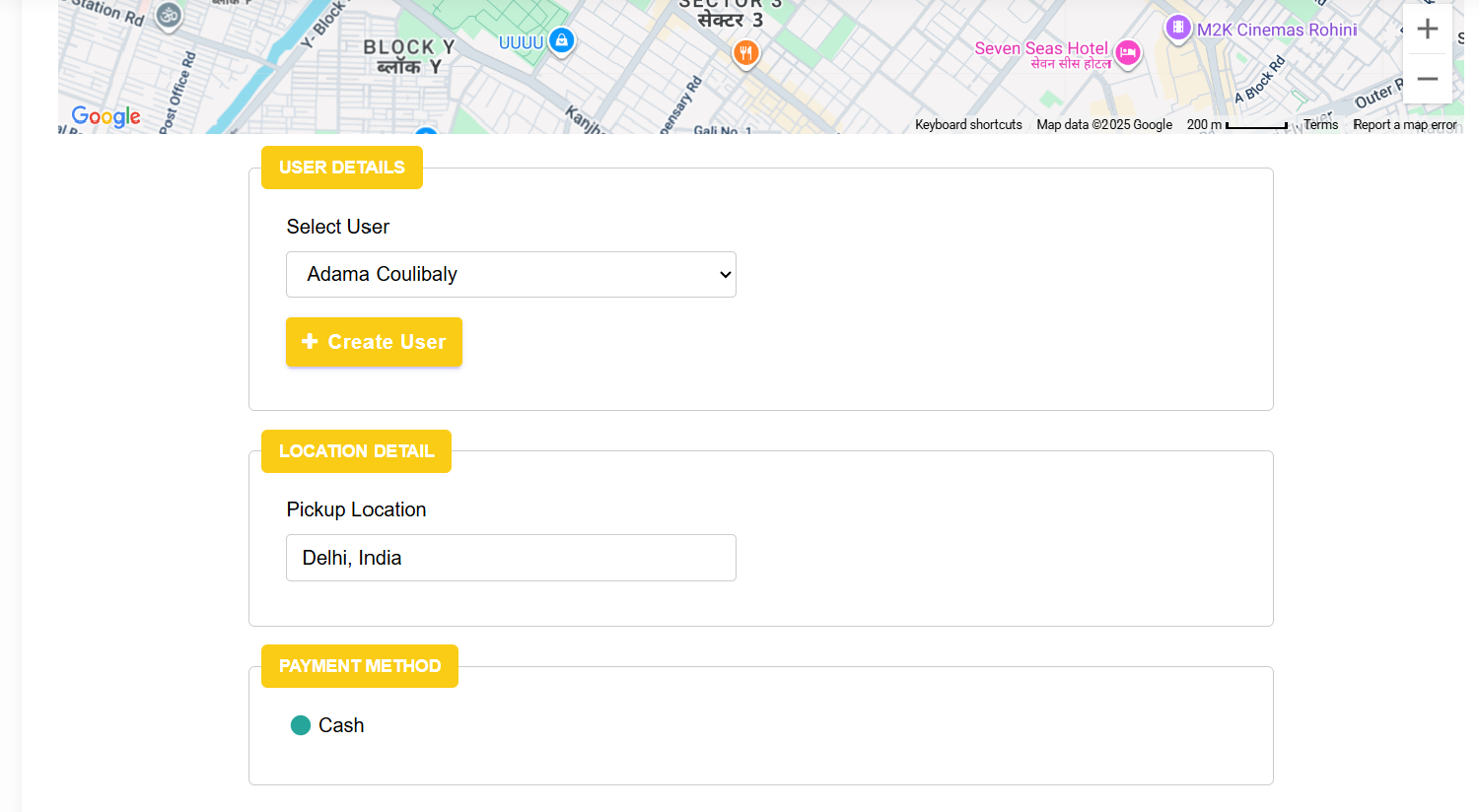
Steps to Create a Rental Ride Booking
- Click “Book Now”.
- Select User (if user not exist then you can create new user by clicking on Create User button)
- Add Pickup Location.
- Select Vehicle Type (Sedan, Mini, SUV, etc.).
- Select Rental Package (1 Hour/40Km, 2 Hour/60Km, etc.).
- Select Start Date and Time of Ride.
- Select Payment Method (Currently only cash payment mode available).
- Driver Assignment (Automatic or Manual).
- Automatic Assignment: The system automatically assigns the nearest available driver based on location and availability.
- Manual Assignment: Dispatchers can manually select a preferred available driver from the driver list when specific assignment is required.
- Click on the “Book” button to create customer booking.
- Monitor ride progress in real time from the Dashboard (Live Map).
5.3.4: Parcel Bookings
The Parcel Bookings page allows dispatcher users to manage parcel delivery requests on behalf of customers. Dispatchers can view all parcel bookings, including pending, ongoing, completed, and canceled deliveries. Each booking displays key information such as pickup and drop-off locations, parcel details, assigned driver, and delivery status.
This feature is useful for customers who need assistance creating parcel delivery requests or who prefer to place orders via call or support. It ensures smooth coordination between dispatchers, drivers, and customers while maintaining real-time visibility and operational control.
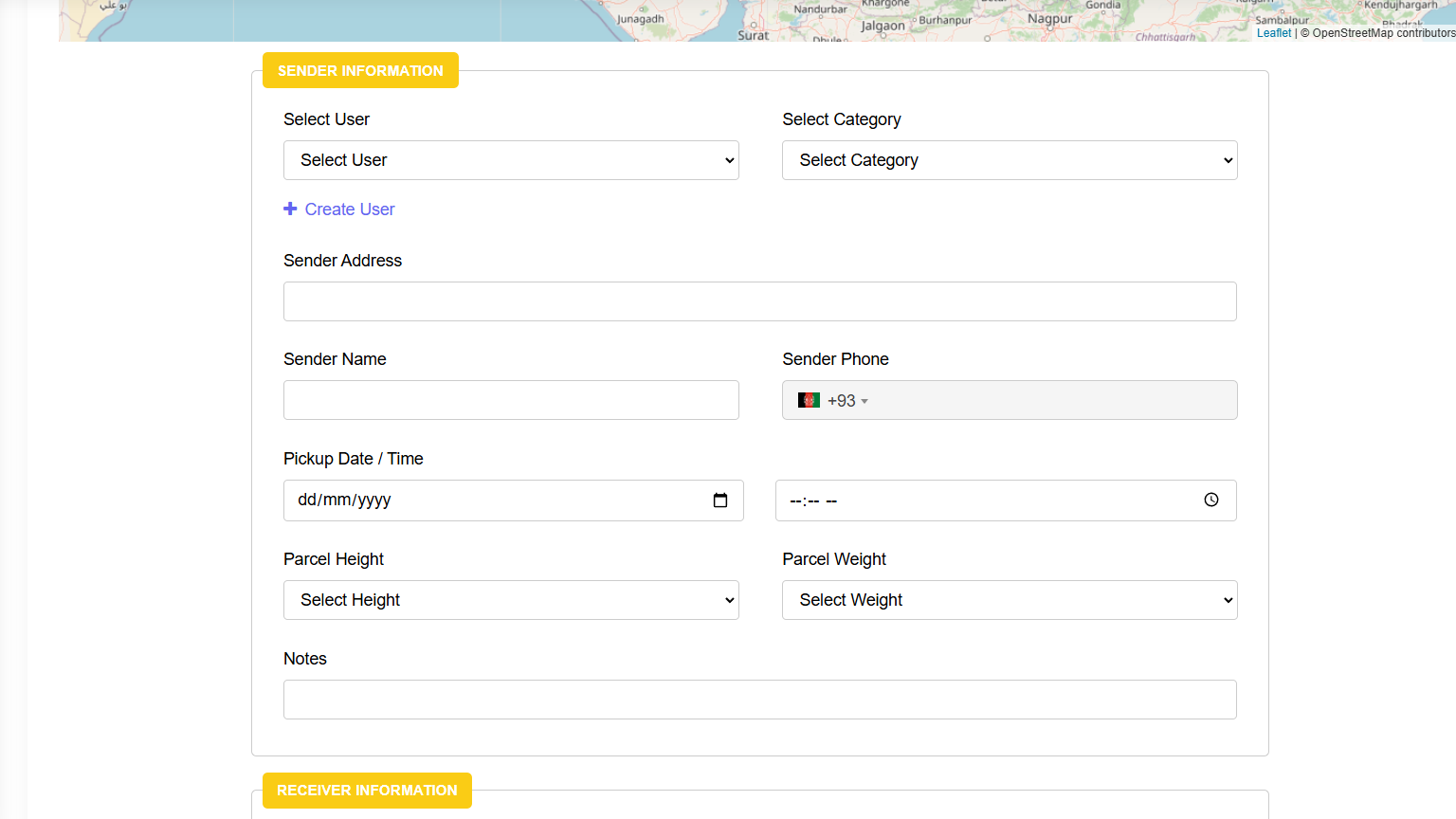
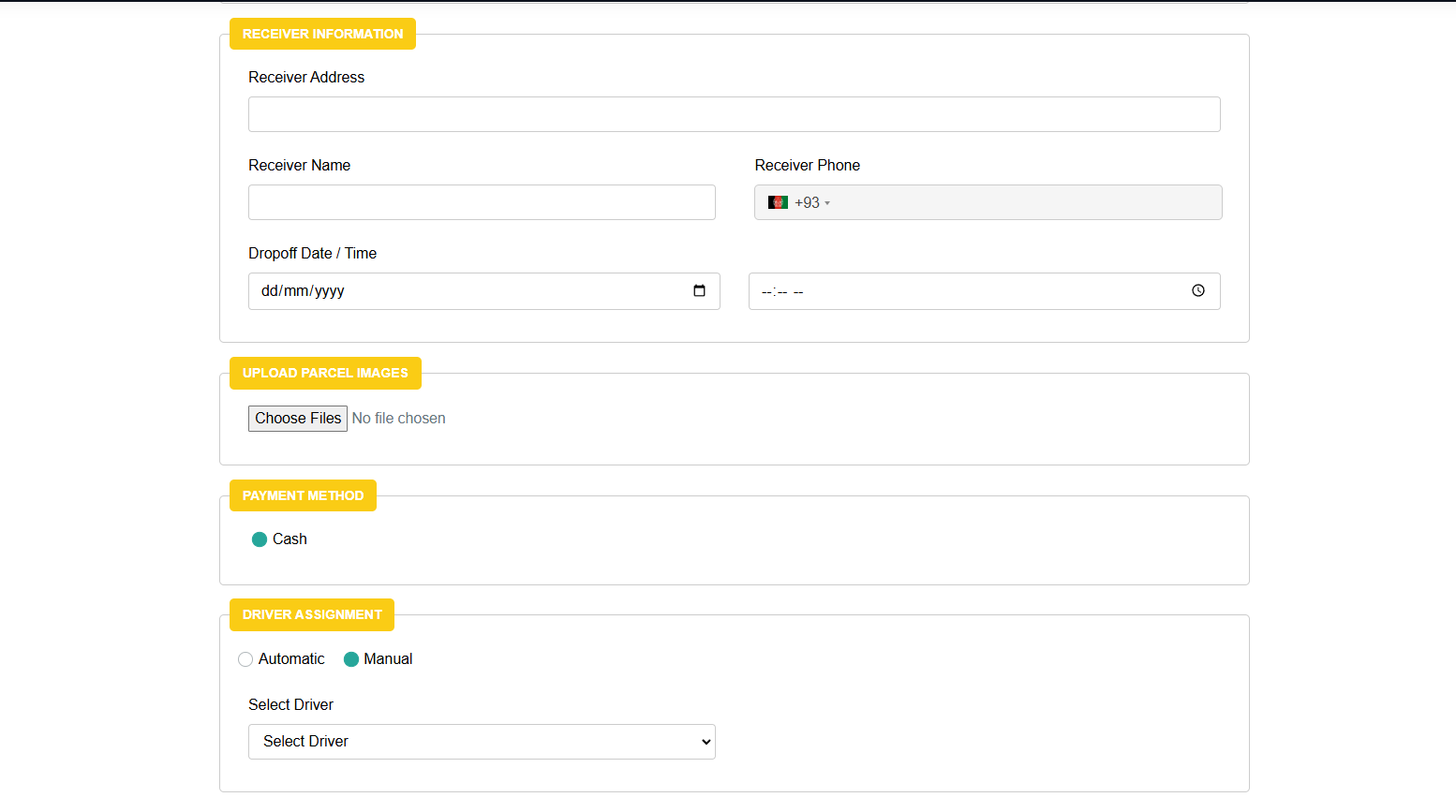
Steps to Create a Parcel Booking
- Click “Book Now”.
- Add Sender Information
- Select User (if user not exist then you can create new user by clicking on Create User link)
- Select Category
- Sender Address
- Sender Name
- Sender Phone
- Select Pickup Date / Time
- Parcel Height
- Parcel Weight
- Notes
- Add Receiver Information
- Receiver Address
- Receiver Name
- Receiver Phone
- Dropoff Date / Time
- Upload Parcel Images
- Select Payment Method (Currently only cash payment mode available).
- Driver Assignment (Automatic or Manual).
- Automatic Assignment: The system automatically assigns the nearest available driver based on location and availability.
- Manual Assignment: Dispatchers can manually select a preferred available driver from the driver list when specific assignment is required.
- Click on the “Book” button to create customer booking.
- Monitor ride progress in real time from the Dashboard (Live Map).
This module improves delivery efficiency, enables quick manual booking, and ensures reliable parcel transportation services through centralized dispatcher control.
5.4 Accessing the Dispatcher Panel
Default Dispatcher User Credentials
URL: Your desired URL where the dispatcher panel is set up.
Email: dispatcher@cabme.com
Password: 12345678