9. Owner Panel Setup
9.1 Connect to FTP and Setup
Follow these instructions to connect to your server using FTP and complete the application setup:
9.1.1. Connect to the server using FTP: Use an FTP client like FileZilla to connect to your server. Enter the server’s IP address, username, and password. Use port 21 for FTP or port 22 for SFTP.
9.1.2. Transfer the ZIP file: Upload your owner panel’s ZIP file to the server’s local path (e.g., /var/www/html).
9.1.3. Unzip the file: Navigate to the file’s location on the server and run the following command to extract the ZIP file: “sudo unzip your-application.zip” or you can do it from cpanel directly.
9.1.4. Update the .env file with your configuration: Modify the database and application settings which are mentioned in the .env file. Below is an example configuration:
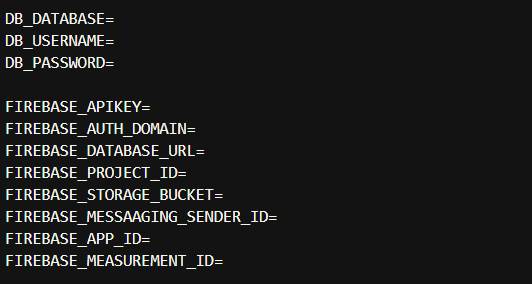
Note: Add Your Google Client ID for Google Login Functionality To enable Google login, you need to provide your Google Client ID.
Steps to find your Google Client ID:
1. Go to your Firebase Project in the Firebase Console.
2. Navigate to Authentication > Sign-in Method.
3. Click on Google under the list of providers.
4. Scroll down to Web SDK configuration.
5. Copy the Web Client ID.
6. Paste this Client ID in the env file of the restaurant panel.
GOOGLE_CLIENT_ID=
Steps to Check/Add Authorized Domains for OAuth 2.0 Client ID
1. Go to Google Cloud Console.
2. Navigate to APIs & Services > Credentials.
3. Open your OAuth 2.0 Client ID (Web application type).
4. Ensure the following are added:
Authorized JavaScript Origins e.g.
https://owner.yourdomain.com
Authorized Redirect URIs e.g.
https://owner.yourdomain.com/__/auth/handler
Now you can access your owner panel at your desired domain For ex: https://owner.yourdomain.com/
9.2 Owner Panel Menus Overview
9.2.1. Dashboard
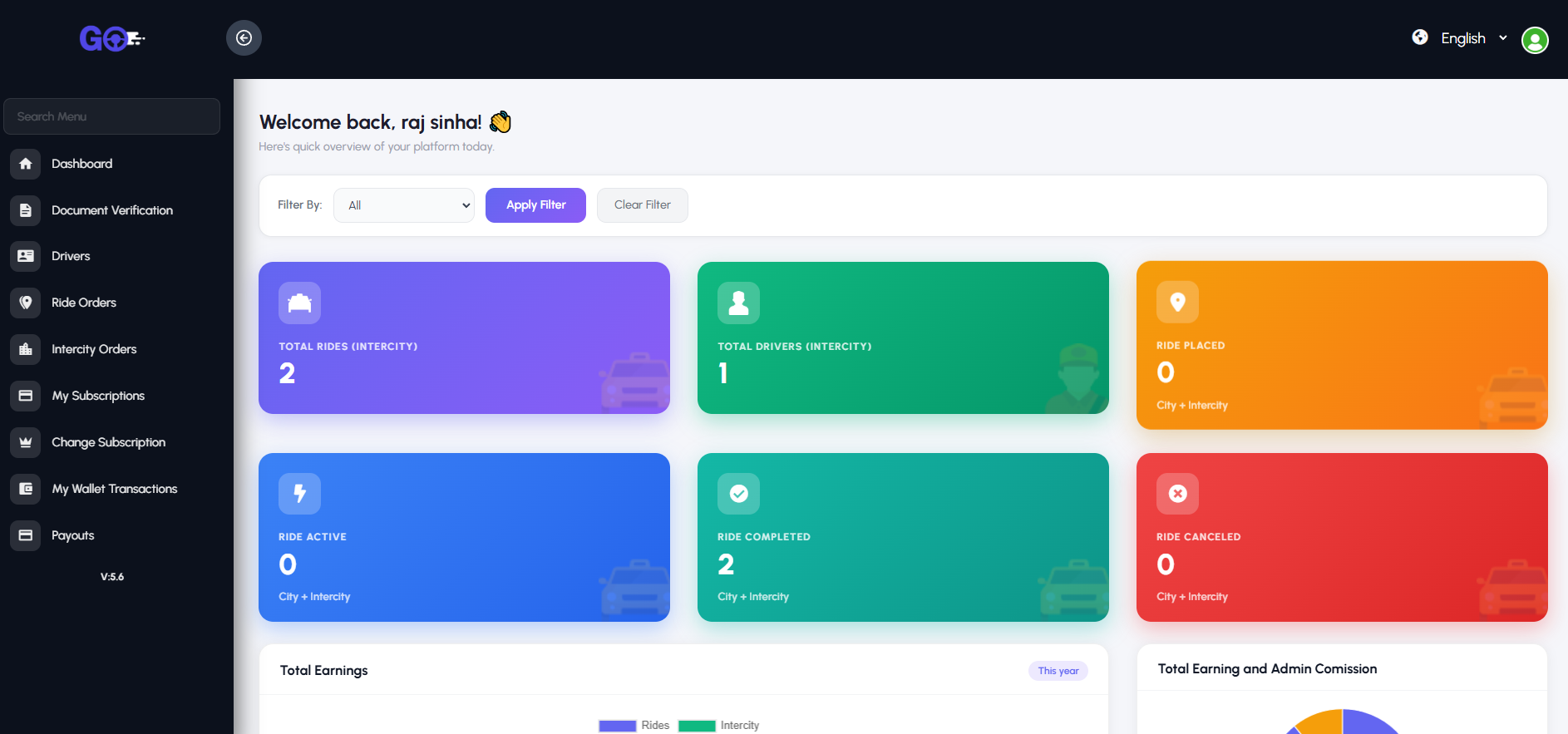
Provides an at-a-glance overview of the owner’s business operations. Displays analytics such as total drivers, active rides, completed rides, ongoing rides, latest bookings, top-performing drivers, and overall earnings summary. Helps owners quickly monitor performance, track fleet efficiency, and make informed operational decisions.
9.2.2. Document Verification
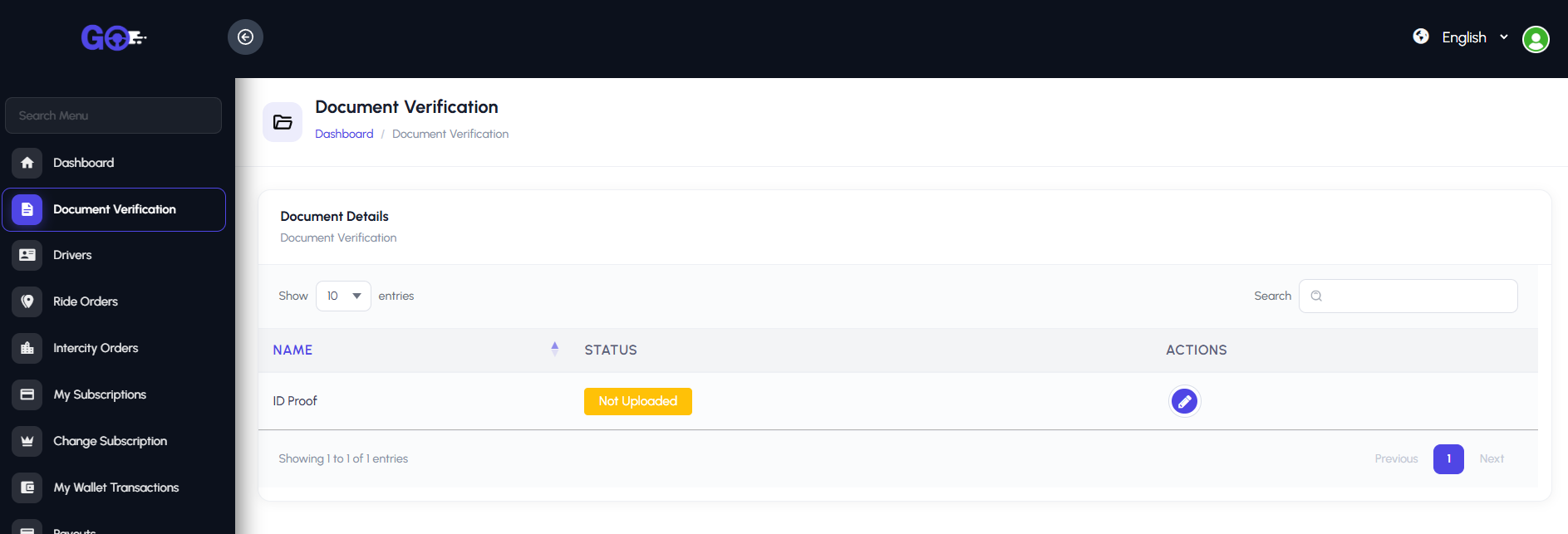
Document Verification allows owners to securely upload and submit required documentation for approval. This can include identity proof, business licenses, vehicle registration, and other necessary certificates. The system ensures that all submitted documents are verified before activating the owner’s account, helping maintain compliance, safety, and trust on the platform.
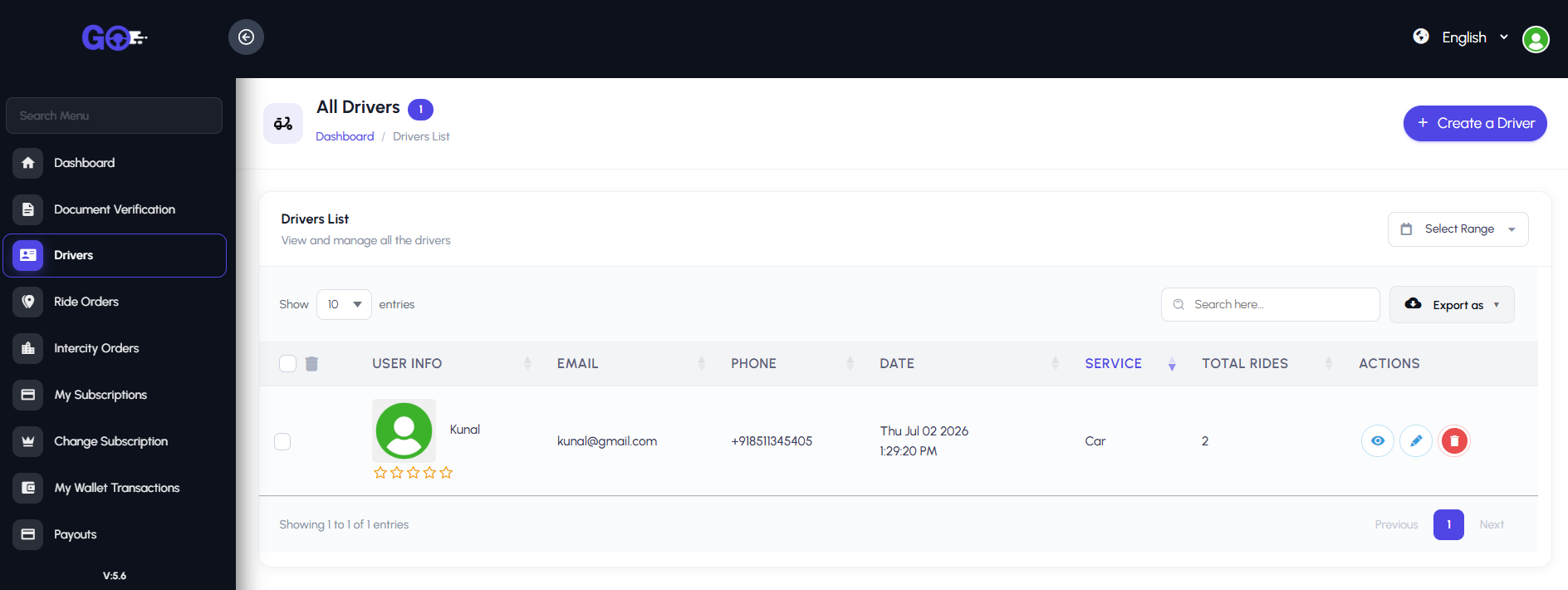
9.2.3. Drivers
The Drivers menu allows owners to manage all drivers in their fleet. It includes adding new drivers, viewing driver profiles, tracking ride assignments, and monitoring performance metrics. This helps owners efficiently allocate drivers, oversee ongoing operations, and ensure smooth service delivery across all bookings.
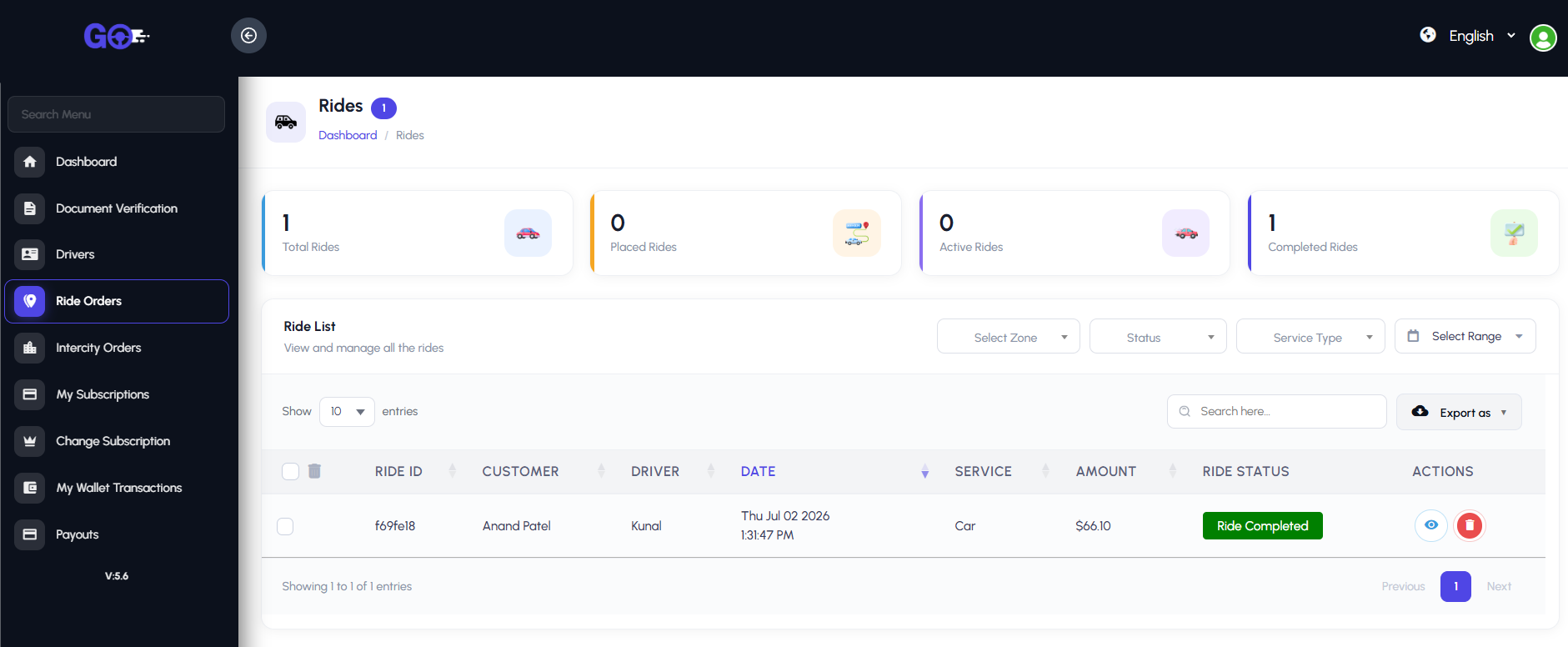
9.2.4. Ride Orders
The Ride Orders section provides owners with a detailed view of all rides booked under their fleet. It displays booking details, rider information, assigned driver, trip status, fare breakdown, and payment method. This helps owners track active, completed, and cancelled rides, monitor fleet performance, and ensure timely service delivery..
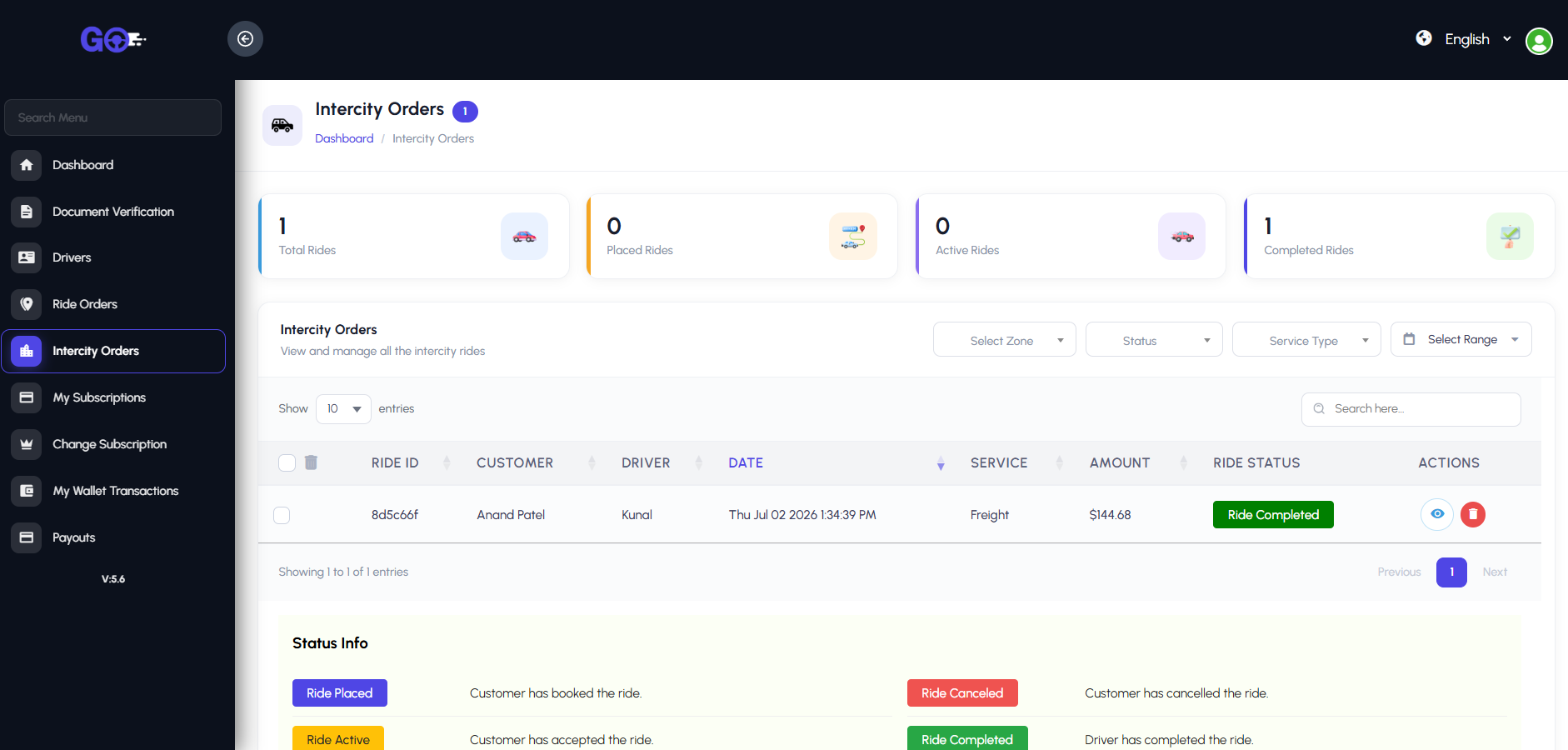
9.2.5. Intercity Orders
The Intercity Orders section provides owners with a comprehensive view of all outstation trips under their fleet. It includes booking details, passenger information, selected service type (Freight, Parcel, Private Ride, or Shared Ride), assigned driver, trip status, fare breakdown, and payment method. This helps owners monitor ongoing, completed, and cancelled intercity rides, optimize long-distance operations, and ensure reliable service for passengers.
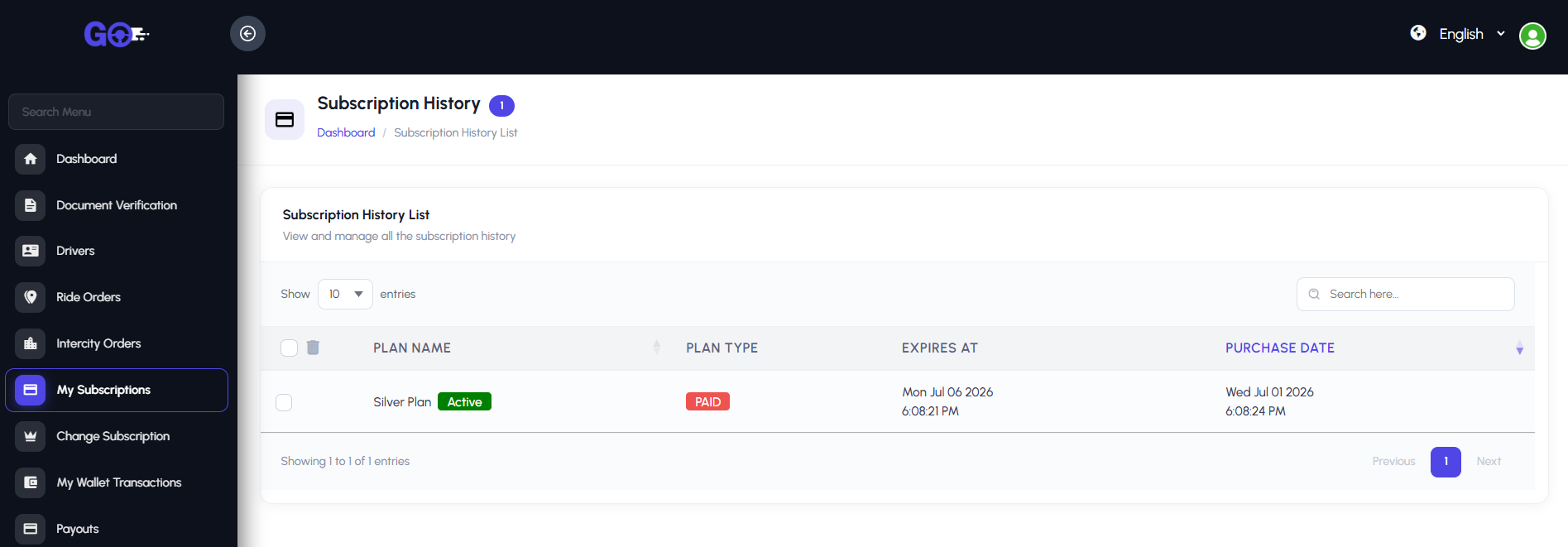
9.2.6. My Subscriptions
The My Subscriptions section allows owners to view and manage their active subscription plans on the platform. It displays details such as subscription type, start and expiry dates, features included, payment history, and renewal options. This helps owners keep track of their plan benefits, ensure uninterrupted access to platform services, and manage upgrades or renewals efficiently.
9.2.7. Change Subscription
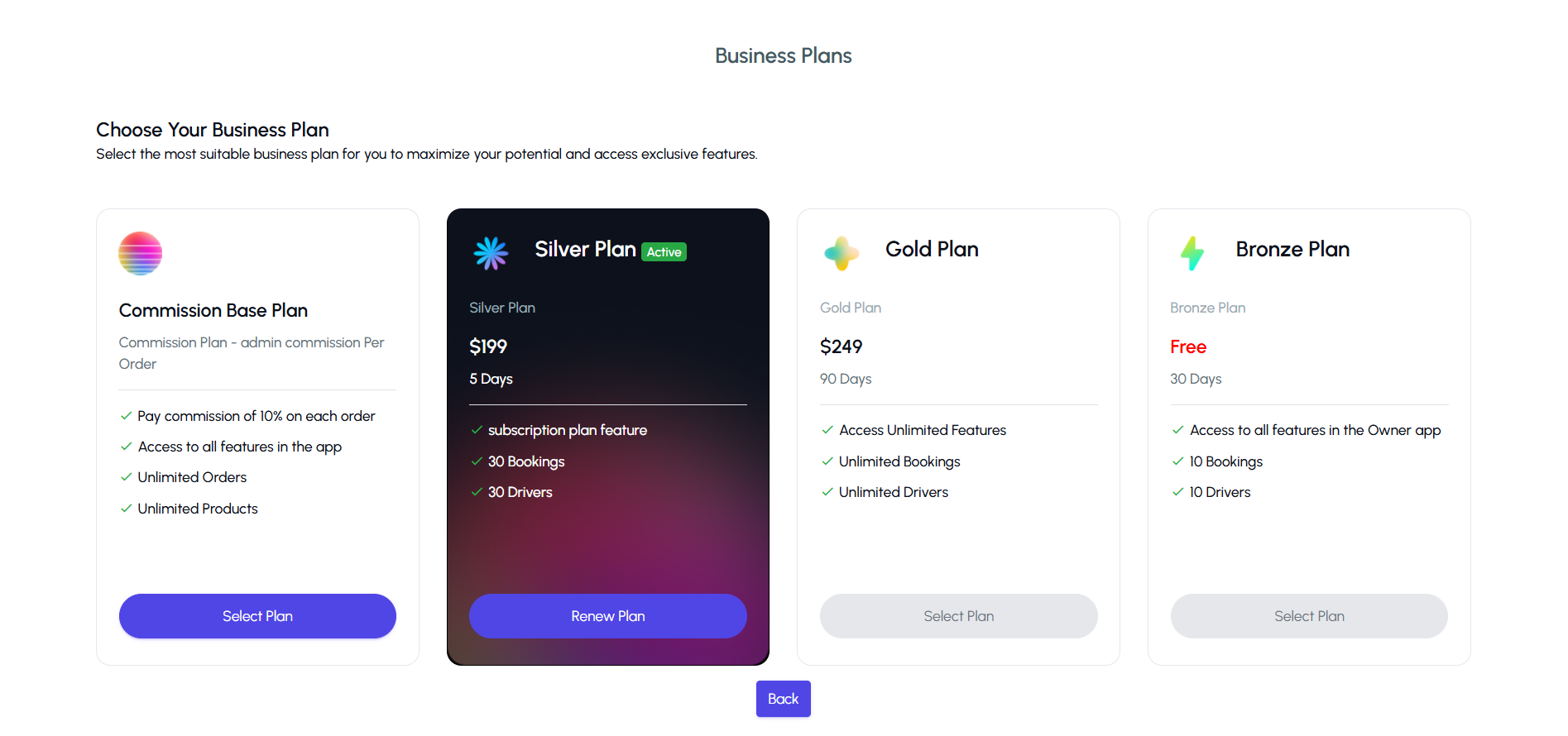
The Change Subscription feature allows owners to upgrade, downgrade, or switch their current subscription plan. It provides details of available plans, pricing, features, and renewal options. This helps owners select the most suitable plan for their business needs, ensuring access to desired features and optimal platform usage.
9.2.8. My Wallet Transactions
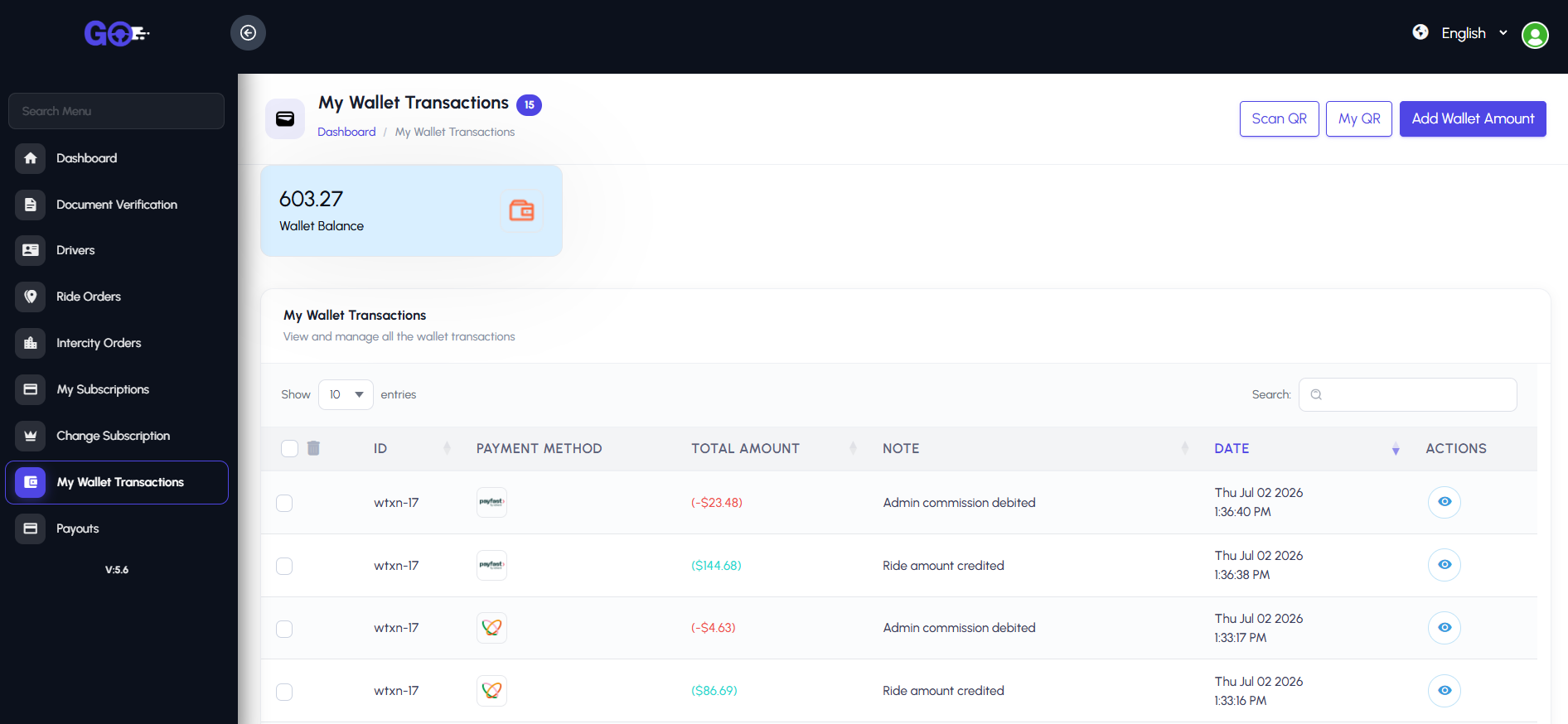
The My Wallet Transactions section provides owners with a detailed record of all wallet activities. It includes credits, debits, payouts, refunds, and adjustments related to their account. This helps owners track financial activity, monitor earnings, reconcile transactions, and maintain transparency in platform-related finances.
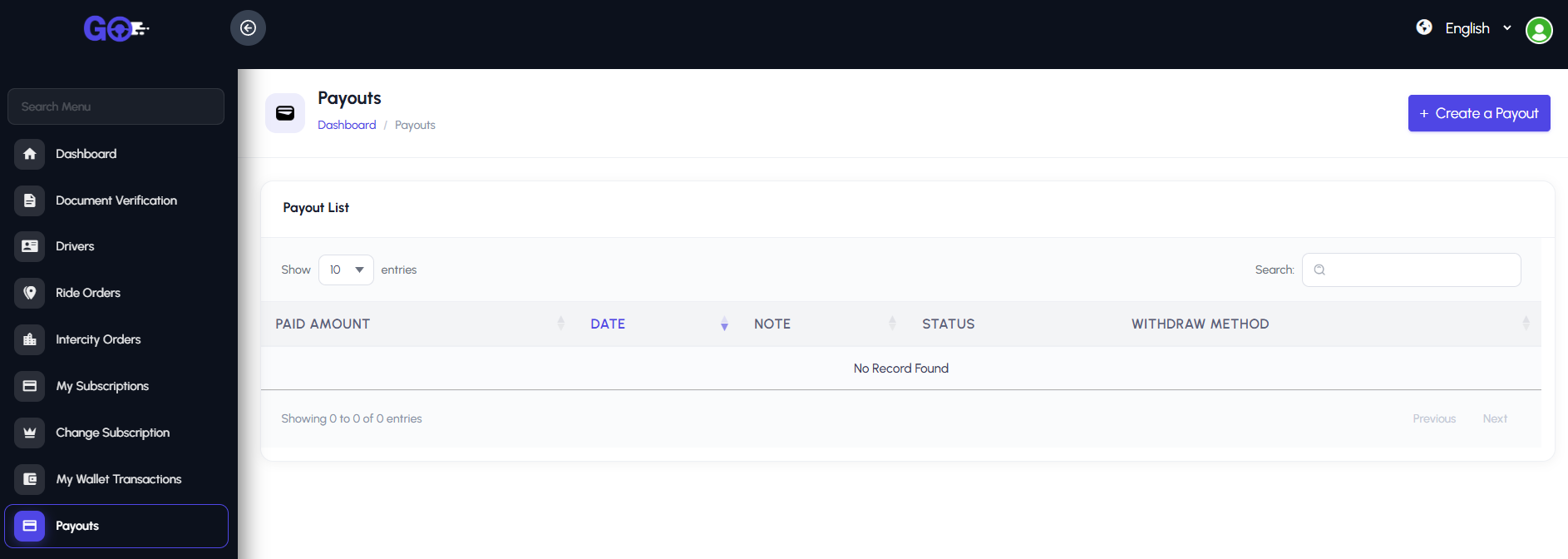
9.2.9. Payouts
The Payouts section allows owners to view and manage withdrawal requests from their platform wallet. It displays details such as requested amount, request date, payment method, and status of the payout. This helps owners track earnings, ensure timely withdrawals, and maintain clear financial records for their business.