3. Create Firebase Project
3.1 :Go to firebase console using this link Firebase: https://firebase.google.com
3.2 : Click on “Go to console” in the top right corner.

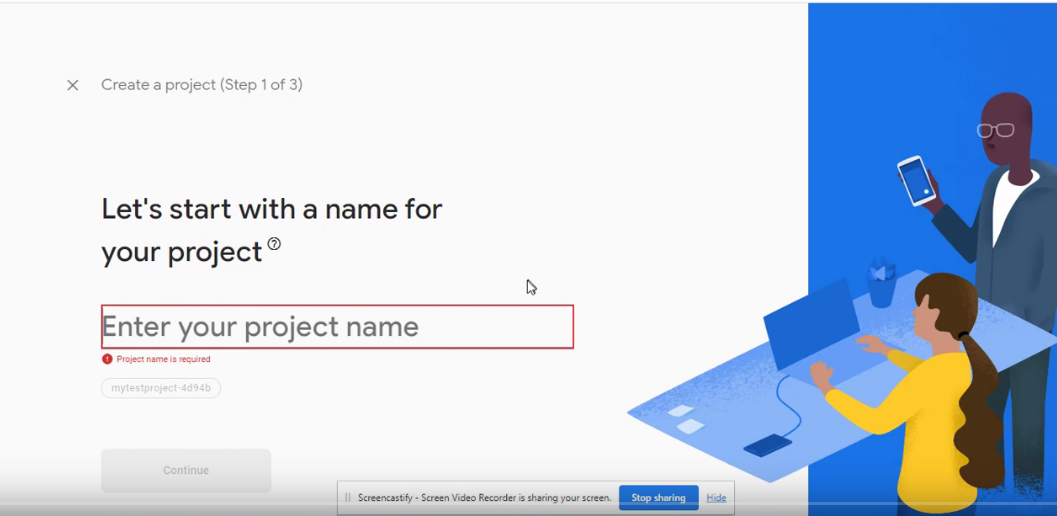
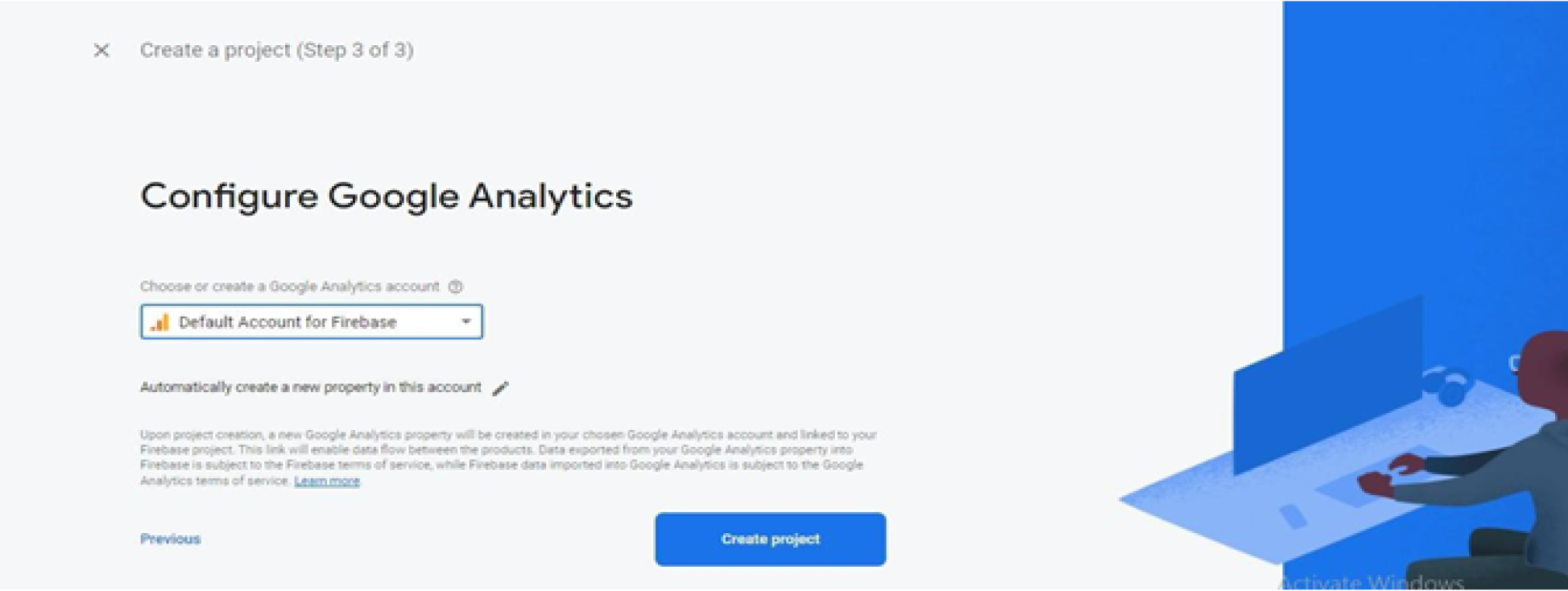
3.3 : Click on “Add project”, it will redirect you to the new project creation page Enter your project name and click on “Continue” again click on “Continue” after that select “Default Account fo firebase” and then click on “Create Project” See
3.4 : After creating a new project it will redirect you to the overview page on this page click on icons link
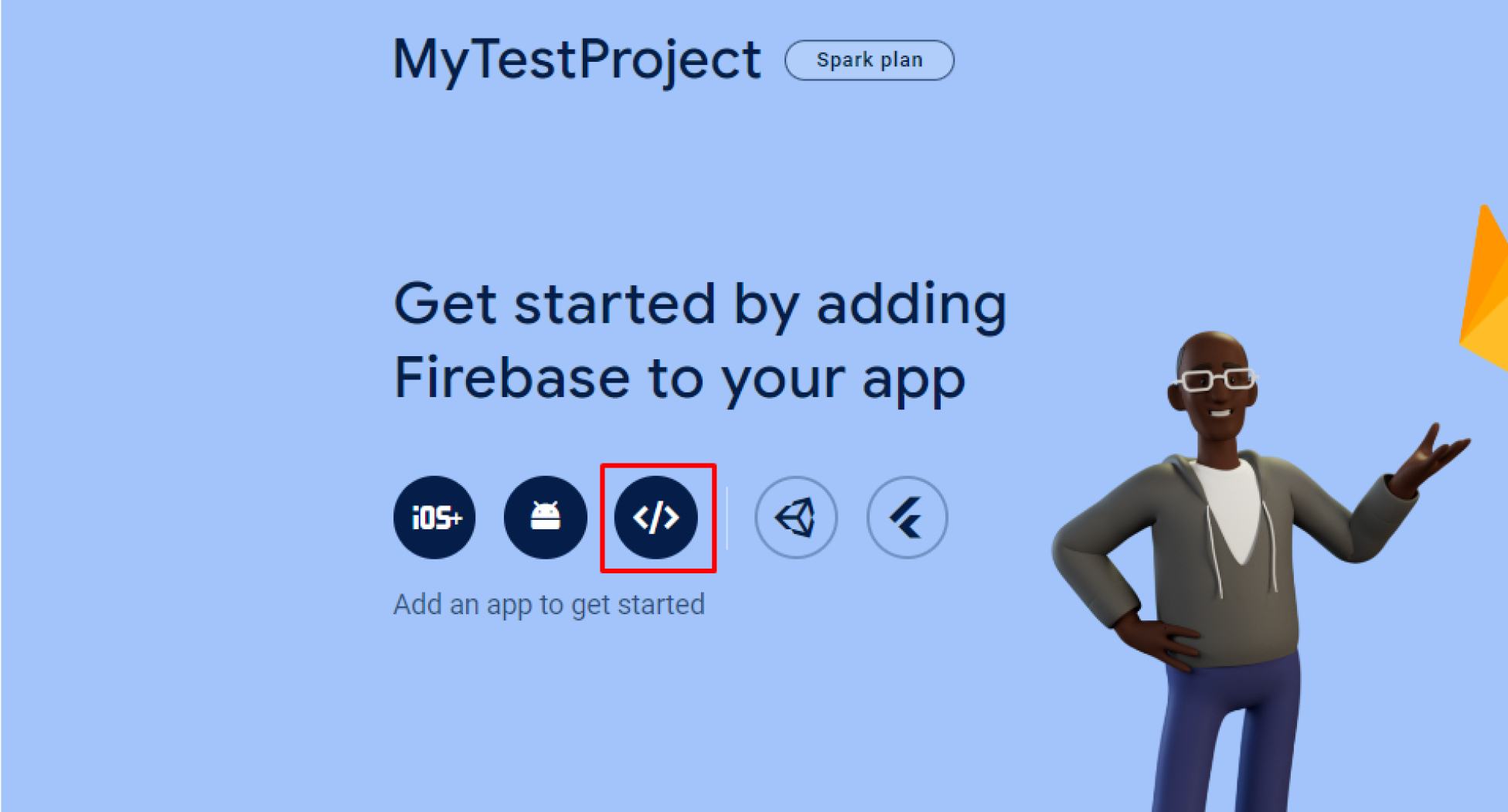
It will redirect you to the “Add Firebase to your web app” page enter your app nickname and click on “Register app” after clicking on it scroll down you can see details like below
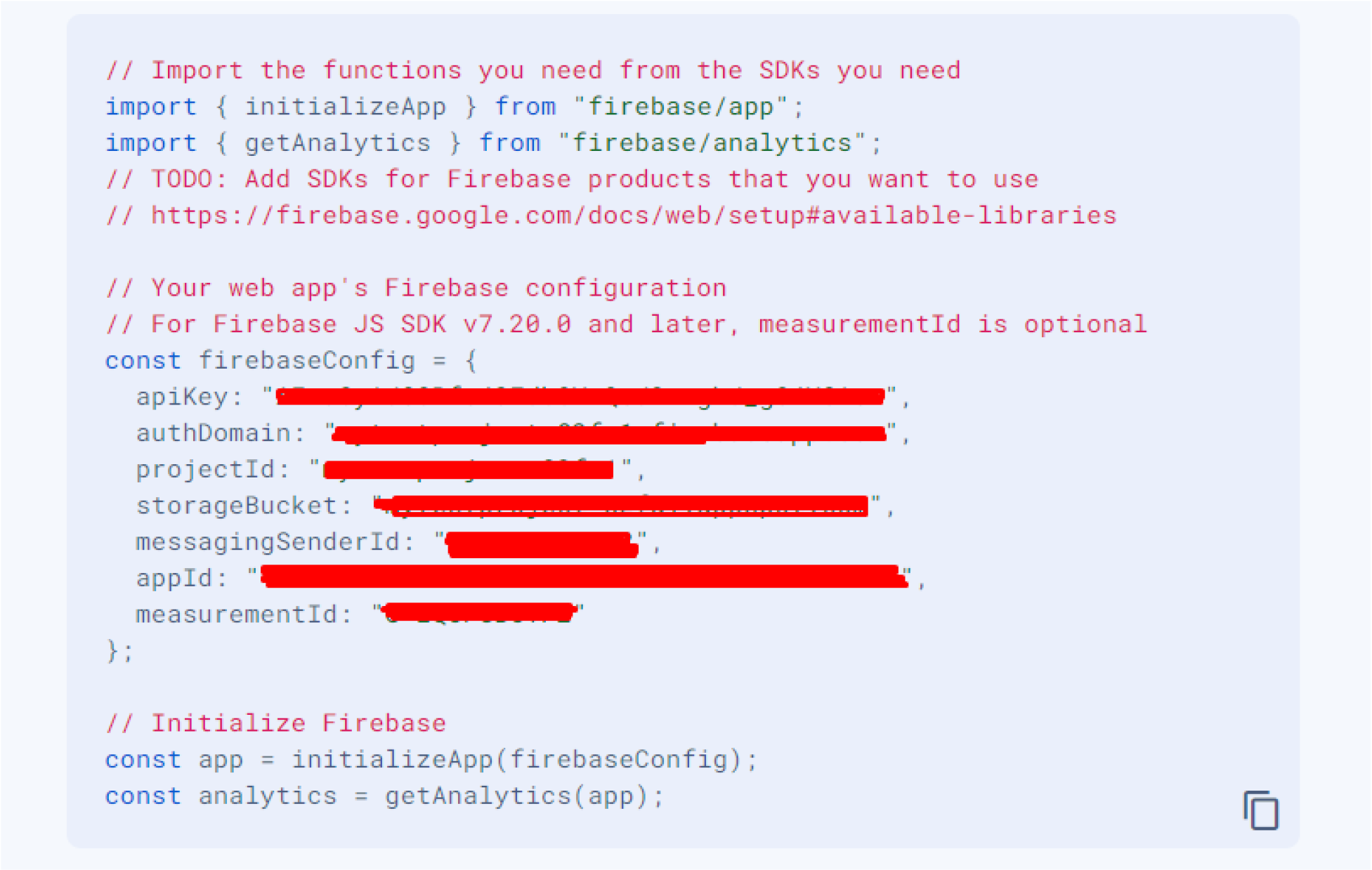
We will use all these details in the app & admin panel documentation.
3.5 : After that click on “Firestore Database” in the left sidebar and select your project name from the drop-down and click on “Create database”
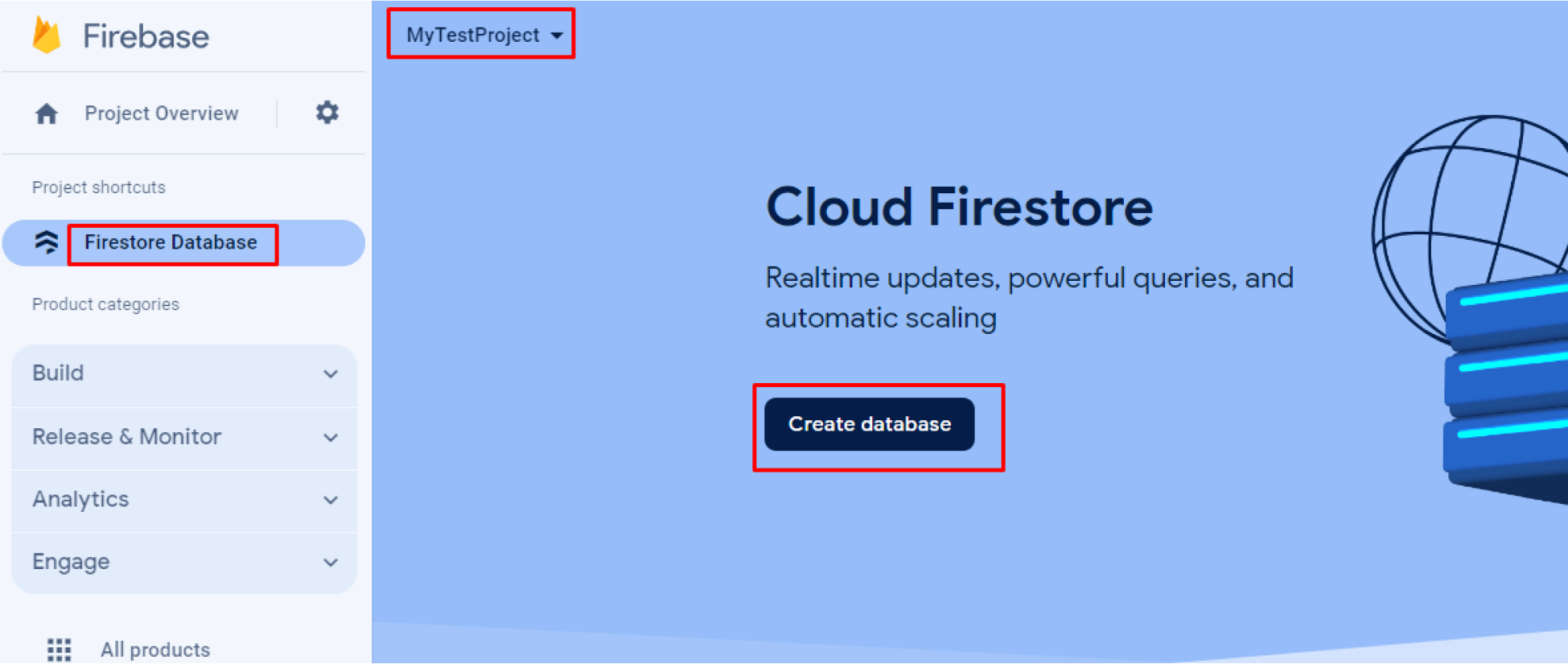
3.6 : Select the preferable option for you and click on the Next button then click on “Enable”
3.7 : After that click on “Realtime Database” in the left sidebar and select your project name from the drop-down and click on “Create Database”

3.8 : Select the preferable option for you and click on the Next button then click on “Enable”
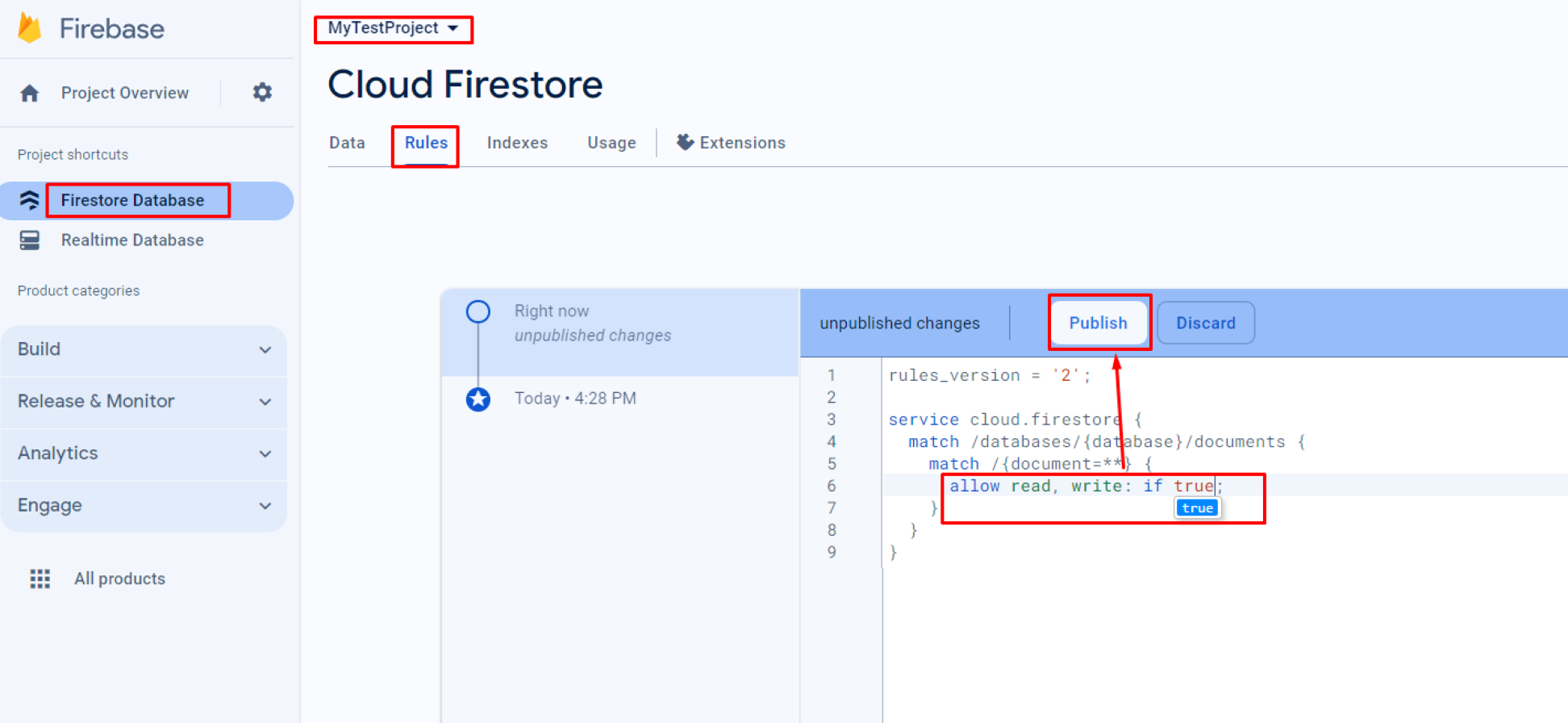
3.9 : Firstore Database Rules Update.