5. To change the Google Maps API key in a Flutter app for both Android and iOS, you need to update the respective configuration files in each platform. Here are the steps:
5.1. For Android:
- 5.1.1. Navigate to your Flutter project’s
android/app/src/main/AndroidManifest.xmlfile. - 5.1.2. Inside the
element, locate the tag with the name com.google.android.geo.API_KEY. - 5.1.3. Replace the android:value attribute with your new Google Maps
API key.
<meta-data android:name="com.google.android.geo.API_KEY"...> android:value="YOUR_API_KEY_HERE"/...>
5.2. For iOS::
- 5.2.1. Open your Flutter project in a text editor or IDE.
- 5.2.2. Navigate to the ios/Runner directory within your Flutter project.
- 5.2.3. Locate the AppDelegate.swift file.
- 5.2.4. In the didFinishLaunchingWithOptions method, set the Google Maps API key.
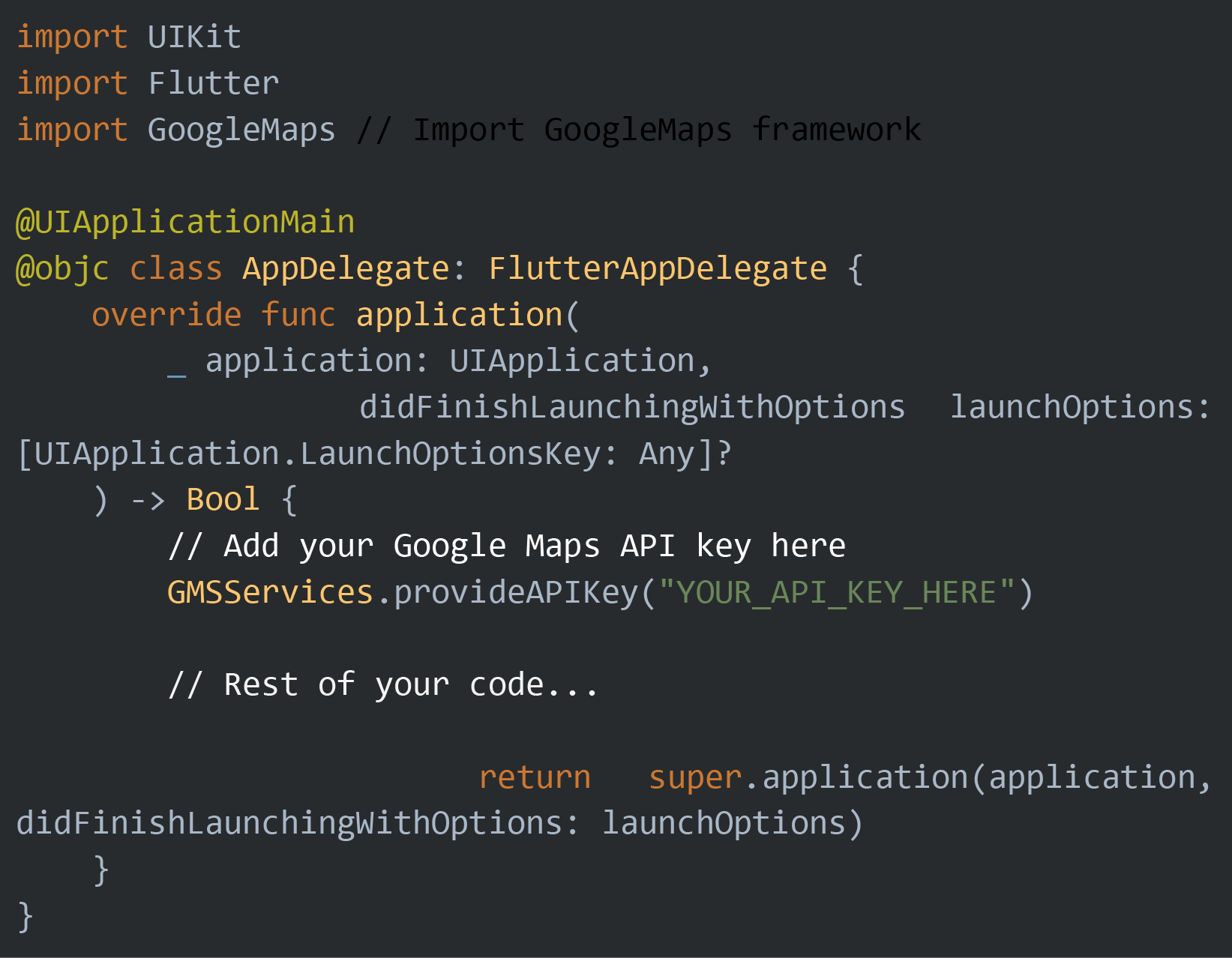
Replace “YOUR_API_KEY_HERE” with your actual Google Maps API key.
After updating the API key in the AppDelegate.swift file, rebuild your Flutter app for iOS to apply the changes.
By following these steps, your Flutter app will use the new Google Maps API key specifically for iOS. Make sure you’ve also updated the API key in the Android configuration as described earlier if you want to apply changes to both platforms.